Hello, my name is Shiva Yadav and you are watching
SIVAN GRAPHIC EDUCATION
First of all HAPPY REPUBLIC DAY
Today, I'm gonna show you the making of REPUBLIC DAY design
at first take Eclipse Tool to make
ASHOK CHAKRA
make a perfect circle by Holding CTRL key
now select the circle
hold Shift Key
drag to the center as shown
now select both shapes
and click on Trim
now select the center circle
and drag it to the center as shown by holding Shift
now take Rectangle Tool
and make a rectangular shape
and
holding CTRL key Rotate it as shown
and
hold Shift
and drag as shown
hit CTRL+Q key combination on keyboard
to curve it
now select Shape Tool
and select middle nodes as shown
and
drag them to the bottom
ok
now
select the shapes as shown
and fill it with blue color
and remove outline by clicking right mouse button on empty color box
here you can check color properties
I'm using RGB colors
now select this shape
put it here
and make it small
to align this shape to the center
select the shape and circle by holding Shift
and hit "C" on your keyboard
now select this shape and click it once again
and drag the center point of this shape
on to the center of circle
now select the shape again
select Rotate under Transformation in Object Menu
fill 24 in copies and 15 in rotation angle
and click on Apply
ok
select and move the shapes as shown
and select sticks
click on Weld
now make another copy of center circle
and make it a little bit small
as shown
put it as shown
and select both shapes
by holding Shift on your keyboard
hit "C" on keyboard to align it to the center
now click again to get access of center point
and drag it to the center circle center as shown
and repeat same process to make 24 copies as you see
now select the shape as shown
and click on Weld
to align both shapes to the center of each other
select both shapes as shown
and hit "C" and "E" on your keyboard
now select the stick shape
and rotate a little as shown
and I'm adjusting it a little
now close the transformation window
select the shape as shown
and group it by pressing CTRL+G on your keyboard
now select the Rectangle Tool again
and make a rectangle as shown
now make it curve by pressing CTRL+Q
now select Shape Tool
and double click the node as shown to remove it
now select this node
and drag as shown
to make the desirable shape
now hold the shown point of the shape
by holding CTRL key on you keyboard
and drag it to the left
now click right button on your mouse
it makes a perfect horizontal flap copy of the shape
which goes to the shape flapping edge
now select the shown part of the shape
and fill with desirable color
repeat same color to remaning shape
now select the shown part
and make it little bit darker
select the shape and click on red color by holding CTRL on your keyboard
keep on clicking till you get desirable color
ok
now remove the outline of both shapes
now select both and make it group by pressing CTRL+G
now again
select the center of grouped shape
and drag it to the bottom point
now drag it by holding rotation point as shown
and right click on your mouse
now to repeat copies
press CTRL+R on your keyboard repeatedly
now select whole shape
and make a copy of it
and ungroup all
select the dark shapes as shown
and
fill it with green color
now select lighter color part by holding Shift
and fill it with green
select the lighter part again
to make it lighter
fill it with lighter color
a little bit more. ok that's fine
now make this shape group (shortcut CTRL+G)
also this right click
group object
now make the background
I'm making 1280x720 size. You can make as you want.
ok
fill white on background
now make a copy of background
by hitting "+" on your keyboard
and select Fountain Fill Tool and drag as shown
click and drag the colors as shown
I'm adjusting more
It looks good to me
now select the top background
and go to Transparency Tool
select Vector Pattern Transparency as shown
go to Transparency Picker
choose silver wallpaper and apply as shown
now drag it little by holding Shift as shown
to make the pattern more on background
ok now
this shape has no outline at this moment
so it dosen't look good to me
now we make another circle
to make the outline of ASHOK CHAKRA
adjust both same
as shown
select both shapes and hit "C" and "E" on your keyboard
I'm adjusting it a little bit more
now remove the outline and fill it with white color
now to make the white circle to back of Ashoka Chakra
right click on it and go to order menu
and choose to back of the layer
now select the whole part as shown
now right click and choose front oft the page under order menu
ok now
make this part in group
now rotate this shape as shown
leave when you satisfied with angle between them
now select top shape and mirror it as shown
adjust it as shown
ok
now make them group by CTRL+G
and select both ASHOKA CHAKRA and grouped shape and press "C" and "E" on your keyboard
I'm making ASHOKA CHAKRA a little bit large
ok
now make this whole shape in group by pressing CTRL+G
and put it to the center of background
now select both background and the grouped part and hit "C" and "E" on your keyboard
now type the matter
I'm using the font Arvind Avanti (you can download it from sivangraphics.blogspot.com)
now make a copy of it
and type as shown
hit CTRL+K on your keyboard to break both lines
and
adjust this as shown
now fill it with blue and make outline color white
go to outline menu
and increase it to the desirable level
now type remaining matter
now break them also by pressing CTRL+K
and adjust it as shown
now to remove the conecting line of Gantantra Diwas which is cause of font
firstly, increase some space between them
and break them by pressing CTRL+K
and curve Gantantra by pressing CTRL+Q
now take Shape Tool
and
adjust it as shown
now make remaining text to near of it
ok now our today's design is ready
Friends, If you are interested in Gaming.
I've given my Gaming Channel Link in the description of video. Please check out that.
Subscribe that if you are interested and share to them who are interested
And contribute on our Gaming Channel also.
How was our this episode? Please tell us by commenting.
If you liked the video then Like it and Share it.
And make sure to Subscribe the channel.
Thank You
Have a nice day!
 For more infomation >> Managing Anxiety After Child...
 For more infomation >> E GREU SA SPUi TE iUBESC ! - film indian subtitrat romana - Duration: 2:52:05.
  For more infomation >> メルセデスAMG「53」、Eクラスにも高性能48VマイルドHV…デトロイトモーターショー2018で公開 - Duration: 4:07.
 For more infomation >> Se construirían 60 millas más del muro con México en Texas, según la Patrulla Fronteriza - Duration: 2:04.
  For more infomation >> Gobierno reabre luego de que el Congreso aprobara fondos bajo una promesa republicana sobre dreamers - Duration: 2:07.
  For more infomation >> Fiscal de California: "Negocios tienen la obligación de proteger a empleados, incluidos inmigrantes" - Duration: 1:49.
 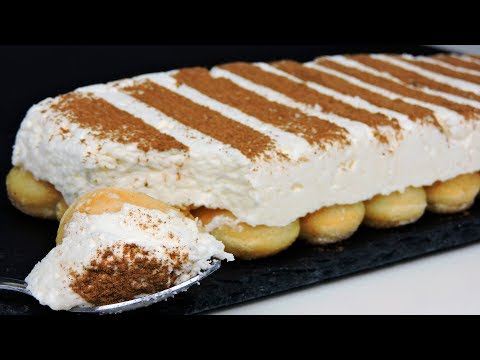 For more infomation >> Tarta de leche condensada (tarta fácil sin horno) - Duration: 4:44.
  For more infomation >> Como fazer um suco desintoxicante para esvaziar os intestinos naturalmente - Duration: 9:35.
  For more infomation >> 4 soluzioni efficaci per liberarsi degli acari - Duration: 6:52.
  For more infomation >> 23/1/18 6:23 AM (19 ถนน วัชรพล แขวง คลองถนน เขต สายไหม กรุงเทพมหานคร 10220) - Duration: 0:07.
  For more infomation >> Бесплатная Бизнес игра Академии 3Steam - Duration: 1:02.
 For more infomation >> Surpresa que o 'BBB18' guardava para estreia vaza e surpreende o público - Duration: 3:53.
  For more infomation >> Trailer de FanFic: Dois Tons - VKookTae (+18) - Duration: 1:50.
 For more infomation >> Heidi Daus "Exquisite Elegance" Necklace and Earrings Je... - Duration: 14:33.


 For more infomation >> Better Late Than Never - Spain's Signature Sport (Episode Highlight) - Duration: 4:06.
  For more infomation >> Heidi Daus "Exquisite Elegance" Necklace and Earrings Je... - Duration: 16:53.
 For more infomation >> Comment résoudre l'équation trigonométrique sin(x) = a ? - Duration: 3:38.
  For more infomation >> Heidi Daus "Tried and True" Crystal Bangle Bracelet - Duration: 2:33.
  For more infomation >> How to stop Facebook messenger from saving photos to gallery - Duration: 1:31.

 For more infomation >> 坐骨神経痛①(坐骨神経痛とは?) 東京の八王子めじろ台の整骨院 はりきゅう整骨院イシイ - Duration: 2:34.
 For more infomation >> Tucker Carlson Tonight 01/23/18 12AM | January 23, 2018 Breaking News - Duration: 40:15.
 For more infomation >> 【爺ch】爺vsBBA 宿命の刻 - Duration: 3:48:34.
  For more infomation >> TALKING TOM #30 an UNEXPECTED MEETING video for kids cartoon game for kids - Duration: 10:24.


No comments:
Post a Comment