(magical jingle)
Well hey everybody, I'm Nathaniel Dodson from tutvid.com,
welcome right into this Premiere Pro tutorial, where today
we're going to take a look at this pretty cool, little sort of
selective color/color range style transition that you can create for
your videos. Check it out!
(♪ so you don't know what you're doing ♪)
Pretty cool, right? We're going to take a look at how to do
that, and everything that's involved in making that here
in Premiere. If you enjoy this video, make sure you subscribe to the
channel so you don't miss any video editing, or After Effects, or
Premiere Pro related tutorials in the future. Let's get into
Premiere Pro, and get this thing going!
Alright, so here we are in Adobe Premiere Pro, let's just get started
here. I'm going to drag in the clip of the girl kind of standing on
the beach. I'm going to say, look, keep the existing sequence settings,
we don't want to mess around with this.
And you can see there she is, and she's looking to the left, we want
her to be looking to the right. So before I even drag any video in
on top of her, up in my effects panel here, I am going to search for a
flip effect, and I want the horizontal flip. Going to drag that and
drop it on the video clip -ba da bing! - it's flipped horizontal just like
we need it. Now, I'm going to drag in the two girlfriends taking a
picture of themselves on top of the mountain.
And we actually want to duplicate this video clip, so I'm going to hold
down ALT/OPT and drag a copy of this up on top.
Now onto this very topmost clip, we are going to add a new effect.
So up here under effects, we're going to look for an effect called
ultra key. So there it is right there, Video Effects>Keying>Ultra Key.
I'm going to drag that and drop that on the topmost clip, don't worry
about the two bottom clips right now. In fact, we can even shut
them off, because we just don't need to do anything with them for
the moment. I am going to choose for my key color, you can see I can
select the eye dropper, grab that. And I'm going to grab a very dark
part of the - this navy blueish color pants they're wearing. You can really
go - just somewhere that's dark. That's what I want.
Now, we're going to get this bizarre looking monochromatic sort of
version of the image. It's not at all what we want, but that's cause we're
just getting started here! I'm going to scroll down here in effect controls,
I'm going to pop open the matte generation, the first thing I'm going to do
is kick transparency up to 100. Then the highlight, we need to drop this down.
So, I'm going to try dropping it down to like 1, - 1 isn't bad. I'm afraid it's
making the mountains back here a little too dark. Let's go with something like
2, and we can even go up to 3 if we absolutely had to. But let's just see.
I'm really trying to make them as absolutely pitch black as I can.
I'm going to set the shadow to zero, and the tolerance here, I guess we'll just
leave the tolerance at 50, we don't need to mess around with that too much.
And then the pedestal, I'm going to set that to 100. Now, you can see how
this is kind of making these trees really pretty black over here. That's not
very good. I think we're going to take the highlight up to like 2.5,
something like that, yeah. See how that's kind of just softening up and dulling
up the background a little bit more? We want that. But to really get
an idea of what we're outputting here, we really should change our output
from the composite to the alpha channel. And here we can see. Now I can
try setting the highlight back to 2. Eh, yeah, we're probably just getting a
little bit too much black back there. Maybe even 3. What does 3 - 3 actually
might be even better. So a highlight of about 3 I think is going to roll
real nicely for us. Now, under matte clean up, we're going to change a
couple of things here. We're going to boost the choke. We're going to set
that to about 10, so you can see that's going to make them a little bit
darker. It also makes the trees a little darker there, but we're going to try
to ignore those trees there for a second. And we'll soften this just, eh,
I don't know, by a little bit. Maybe we'll go like 25 - that's a little more than
a little bit, that's kind of a lot bit. And I can collapse that. And here under
spills suppression, I'm going to adjust this here by just - well, just change
the range. The desaturate, spill, and luma are all fine. We're just going to
change the range to zero here. And I'll just collapse spills suppression, I
can even collapse matte generation. And we kind of have an alpha of
what we want to be selected. With the bulk of the girls, all their clothing certainly
is solid black. The skin leaves a little to be desired. But this effect really doesn't
have to be perfect. You almost want that almost organic feel to it,
it just - it works really nicely, and it's a pretty fast transition. So it's kind of
here today, gone tomorrow, and you just realize, "Woah, that was kind of
a cool, little effect that just happened there really, really quickly."
Okay, so, let's grab the middle clip of the girls, and I'm going to turn that on
as well, you can see it still looks like nothing's changed, don't worry.
We want to add something to this effect, because really the top track here,
with these girls, this - this bit of video we changed with the ultra key,
really just helped us get a selection. This is not a mask, this isn't anything
like that. Not yet, at least. This is just black and white, creating this selection
around these girls. Something that's going to be easily selectable and
grabbable for an effect here in Premiere Pro. And that's exactly what we're
going to do now. Because we're going to use this top video track, the white
and black to punch a hole in our middle video track. Which, of course,
will then show through the young girl with the vintage camera below.
So, I'll select that middle video track, and to this we're going to add something
called a track matte key. You can see there, it's Video Effects>Keying>Track Matte Key,
I'm going to drag that and drop that on the middle video clip.
And here, I'm going to say matte, well I only have one choice, that's video 3.
That's track 3, and that has our black and white alpha option on it, and
that's exactly what we want. We'll go, yup, three. And you can see, it just
gives us the entire image back. That's because we need to composite using the matte
luma option. And now you can see, the girls look kind of solid black. Why do
they look solid black? Well, because remember, this young girl with the vintage
camera video clip - we have it shut off. So this is essentially just showing through
to the solid black background. But if I turn that clip on, we can now see her down
beneath these two girls. But let's actually turn this into a transition, here's how we
do this. So if we scroll through, we can see, there's the girl, she's moving around
back there, and doing her thing. But we obviously want this to begin where we still
see the girls on the mountain top before we introduce the new girl who's at the beach.
So, we'll make sure we select the clip on the top. So if we just mess around with
the mask - change the mask, then the whole effect can change, right? If we
animate the mask, well, I'll answer the - I'll answer the question for you, the
answer is, yes! that is true! I'm just going to drag my audio track mixer over a
little bit, because we're going to use our little animating timeline here.
And what I want to do, I'm going to open up matte generation, and I'm going to move
about 20 frames out from the beginning of the video. So I'm going to hold down
SHIFT and tap my right arrow key, 1, 2, 3, 4 times. And I'm going to drop a keyframe
by hitting this little toggle animation stopwatch icon. Now, I'm going - I'm just
going to straight up click anywhere out here in this animation timeline, and use
my plus button to zoom in a little bit. And then I'll move all the way back to the
first frame. And now, I'm going to set transparency to zero. So you can see,
here we go, we have these girls now solid. And as we scroll through, they fade
out revealing the girl underneath. Now, try to ignore this down in the corner,
that's going to require just a little bit more matte clean up that we probably
should have taken a closer look at before. But I was trying to pretend that those
trees weren't doing any damage. Again, maybe it's an effect that you like,
you like that there's kind of that movement in the trees, and again, this will
also move relatively quickly. So these girls get filled with the video track underneath,
and I'm going to zoom out here on my animation timeline hitting my minus key
a little bit. Maybe like right here. Or maybe I'll take it just a little bit further, we'll
take it a little past two seconds. So 2 seconds, 17 frames, and in this case, we want
to animate the highlight parameter. So I'm just going to drop a keyframe right here,
because we like it at 3, right? It's doing exactly what we need it to do.
And then let's move downstream, down the timeline about 30 frames. So hold
down SHIFT and tap the right arrow key 1, 2, 3, 4, 5, 6 times, and then here
what we'll do, is we'll simply set the highlight to zero. And you're going to see
this knocks everything out. So if I bring this back to the beginning and play
through it, check it out.
We get a really cool, very organic - every video clip you apply it to is going to be
a little bit different style transition for your video. Now, you may want this to be
really, really fast, because maybe, right, you don't want somebody to necessarily see
the messy edges. That's totally fine! Over here, where we're doing the animation,
grab these two - the two keyframes right here, and we'll just move them back.
So, we'll say, look, just show the girls cutout for a quick second, and then boom,
immediately start closing everything up. Or maybe you want to really speed everything
up a lot more than that. We can zoom in here a little bit, we can just move these
keyframes a lot closer together. So we could just draw them in, and then I'll just take
this keyframe and drag it closer. The close all these are, the faster all this takes place.
Boom, fill. And then fades right away to the next clip. So you have all kinds of different
options. You can select all these keyframes. You can right click. We can do something
like an auto bezzier, and just have a nice fade to all of it, as well. And just, - it just
works, man, it just works and there you have your completed transition effect.
(♪ so you don't know what you're doing ♪)
And yeah, that's pretty much all that goes into it. Told you it wasn't too
difficult, right? Just a couple little effects, couple little adjustments here and there,
boom! make sure things are lined up nicely, and you've got yourself a nice,
little transition. If you enjoyed that, make sure you subscribe to my YouTube
channel, so you don't miss anything in the future. And if you use Instagram,
check me out over on Instagram @tutvid. I try to do a live show there pretty much
every day. And there's all kinds of other cool stuff that goes on over there, as well.
And if you're into Discord, you can check out our Discord server, discord.me/tutvid,
a nice, little community that's just waiting for you to join us over there, as well.
Guys, for messing around with a couple little effects here in Premiere Pro
to create this kind of cool, little transition, that's it!
Get it? Got it? Good!
Nathaniel Dodson, tutvid.com, I'll catch you in the next one.
(upbeat music) And before you go, make sure you subscribe to my channel for more
great tutorials everyday!
Also, buy my course! It helps us do what we do, and this channel is
supported by viewers just like you!
You can also just click the thumbnail and watch another video from this channel.
See you next time, guys.
(upbeat music)

 For more infomation >> El acompañamiento social: Construyendo relaciones que transforman. - Duration: 9:43.
  For more infomation >> 7 cenas para perder peso en una semana sin pasar hambre - Duration: 7:38.
  For more infomation >> 6 beneficios de los pétalos de rosa - Duration: 3:42.
  For more infomation >> [中共政要的公共情人湯燦][湯燦傳奇][傳說得了愛愛病][政要的女人中共的淫蕩俱樂部][吃好道相報] - Duration: 1:29.
  For more infomation >> (Sub Español) Dylan O'Brien se emociona al hablar sobre los personajes - Duration: 2:42.
 For more infomation >> A por la scar y victoria magistral!!!!|Trio Gaming - Duration: 38:56.
  For more infomation >> Almaia (Alfred y Amaia) enamora a Europa - Duration: 5:04.
  For more infomation >> Aitana y Ana Guerra estrellas en el debut de 'Fama, a bailar' - Duration: 2:07.
  For more infomation >> 3 errores que cometes siempre que estás por iniciar dieta - Duration: 7:54.
  For more infomation >> Da Boom Crew
 For more infomation >> Volkswagen Passat 1.6 TDI EDITION R Uiterst Compleet! - Duration: 1:00.


 For more infomation >> Overturned semi spills corn across I-275 - Duration: 1:36.
  For more infomation >> Multiple vehicles involved in I-80 pileup after fast-falling snow - Duration: 2:21.

 For more infomation >> 2NE1's "I Am The Best" Becomes Their 1st MV To Hit 200 Million Views - Duration: 1:07.
  For more infomation >> Fatal Frame I parte 13 - A grande porta! A calamidade... - Duration: 44:59.
  For more infomation >> CHEAP vs EXPENSIVE PIZZA - Which One Is Better? 🍕| Mar - Duration: 12:14.


 For more infomation >> Depois de perdoada, Desirée esconde novo segredo cabeludo de Juvenal - Duration: 4:51.


 For more infomation >> Fernanda recebe uma surpresa e seu casamento é arruinado - Duration: 5:06.
  For more infomation >> Esquecido pela Globo, ator veterano aparece abatido e debilitado - Duration: 3:57.
  For more infomation >> Juliana Paes fala sobre polêmica envolvendo nudes: 'Não estou morta' - Duration: 3:40.
  For more infomation >> BBB18: Jéssica vira piada na internet ao dizer: 'Levanta a cabeça, princesa' - Duration: 3:45.
  For more infomation >> O Outro Lado do Paraíso: Mercedes pede Josafá em casamento e fica viúva - Duration: 4:17.
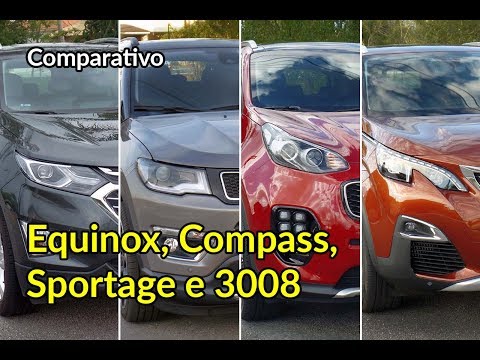 For more infomation >> Equinox, Compass, Sportage e 3008: compare SUVs de R$ 150 mil | Best Cars - Duration: 13:25.
  For more infomation >> OS CELESTIAIS PODEM APARECER EM GUERRA INFINITA 2018? - Jujuba ATÔMICA - Duration: 6:36.

 For more infomation >> Just The Way You Are Bruno Mars | Instrumental Cover Sax Piano Bass Drums - Duration: 2:45.

 For more infomation >> Tratamiento de la neumonía en niños - Duration: 3:37.
  For more infomation >> Rupert Spira - Utrpení je obsaženo v jediné myšlence - Duration: 12:03.
  For more infomation >> INVESTINDO EM MOEDAS DE FORMA GRÁTIS - ESTRATÉGIA NOVA PARA INICIANTES - Duration: 12:35.
  For more infomation >> Zulu - Linha de Passe e Variação Levada de Samba - Duration: 7:08.
No comments:
Post a Comment